Help
There are two ways of assigning a Mac to a eqMac Pro License, automatic and manual.
- Automatic is the easiest option but requires eqMac app to have access to the internet as is recommended way of assigning a License especially for Monthly Subscription customers.
- Manual assigning is useful for people that can't or don't want to give eqMac app access to the internet, but is not recommended for Monthly Subscription customer as it would require reassigning the License every month.
Prerequisites
- Make sure you are Signed-in to your account on the website.
- Make sure you have either an active Pro Subscription or an unassigned Lifetime License
- Make sure eqMac app is running
Automatic assignment (recommended, requires Internet access)
- Authenticate eqMac app with your account
- Once authenticated eqMac should just assign the License automatically.
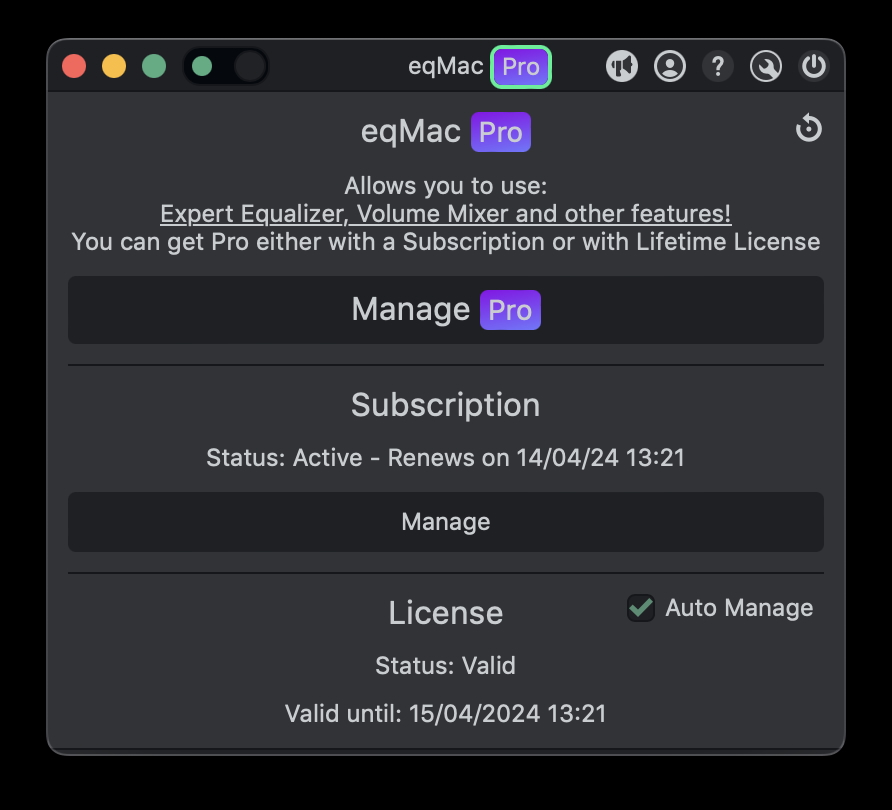
You can check that the License has been assign by opening the Pro section in the app (Purple "Pro" button on the top), in the License section it should say "Licence: Valid". If you already have an active License for this Mac, eqMac will just pick that. If you have both Pro Subscription and a Lifetime License at the same time eqMac will first check if you have spots left on your Subscription and generate a new License on the Subscription. Otherwise it will use an unassigned Lifetime License and assign it to your current Mac. If you don't have any License slots to fill eqMac will let you know about it and you will have to either delete one of the Subscription Licenses or Transfer Lifetime License to this Mac.
Manual assignment
You can always assign an empty License on the website and download the License file (.eqm extension) to active eqMac in offline mode.
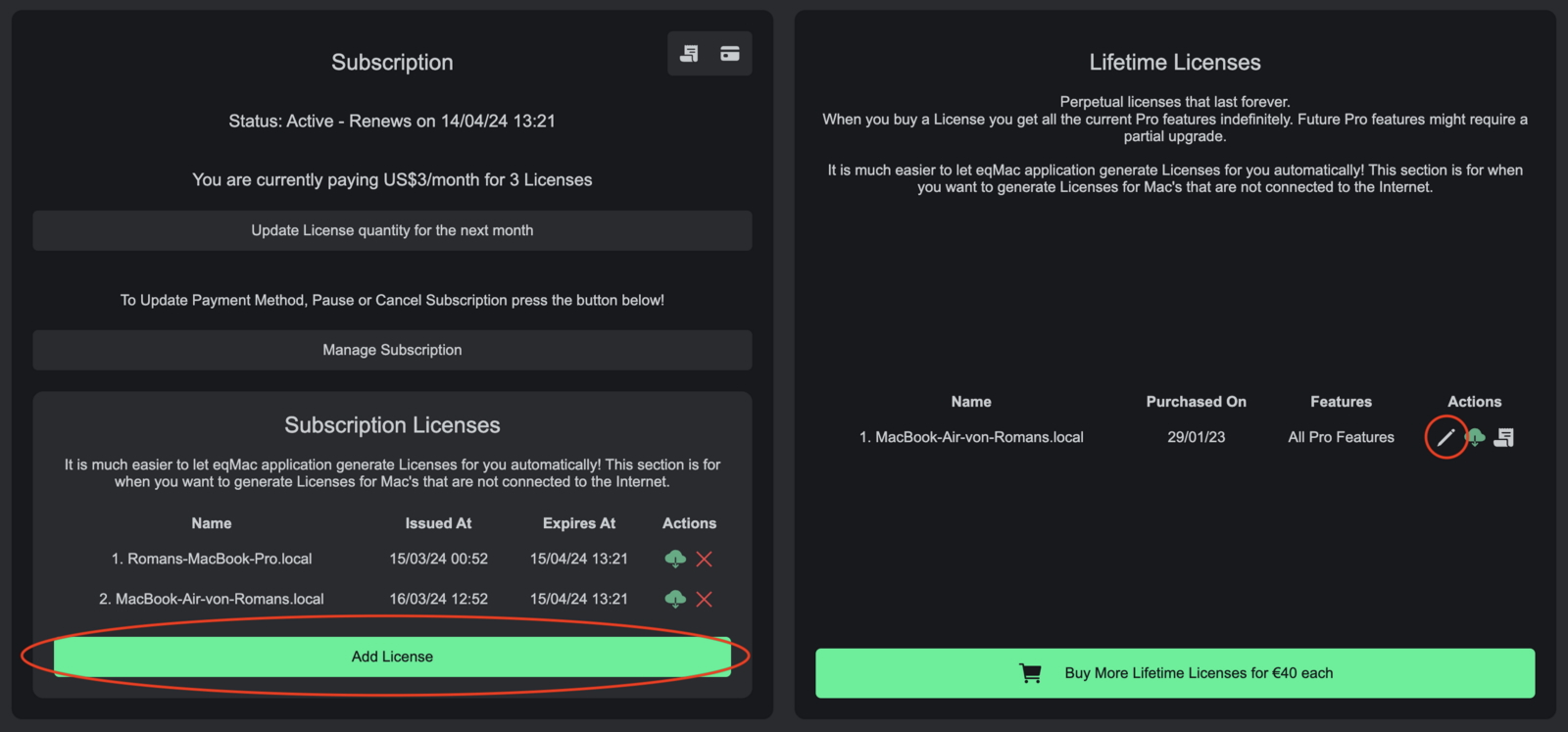
If you have a slot in a Pro Subscription press green Add License button or if you have an unassigned Lifetime License press the Pencil edit button against the License
Enter a name of the License (for reference) and the Serial Number of your Mac (you can find that by clicking the Apple logo top left of the status bar and "About This Mac"
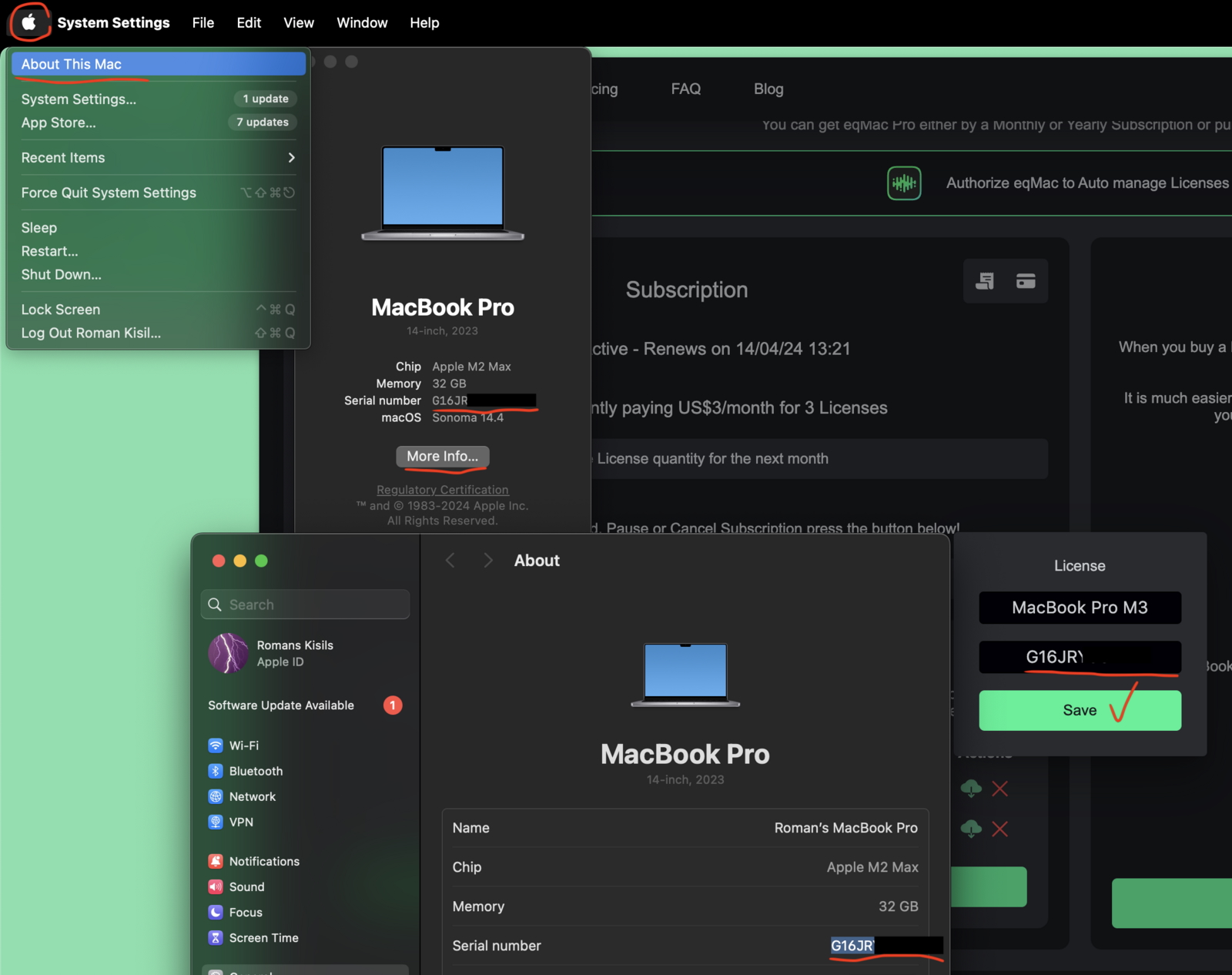
Press "Save" and that will assign the License to your Mac, now you can click on the green cloud download button and that will download the .eqm license file.
Double-click on the License file you just downloaded and that should open eqMac and in the "Pro" section of the app you should see "License: Valid"